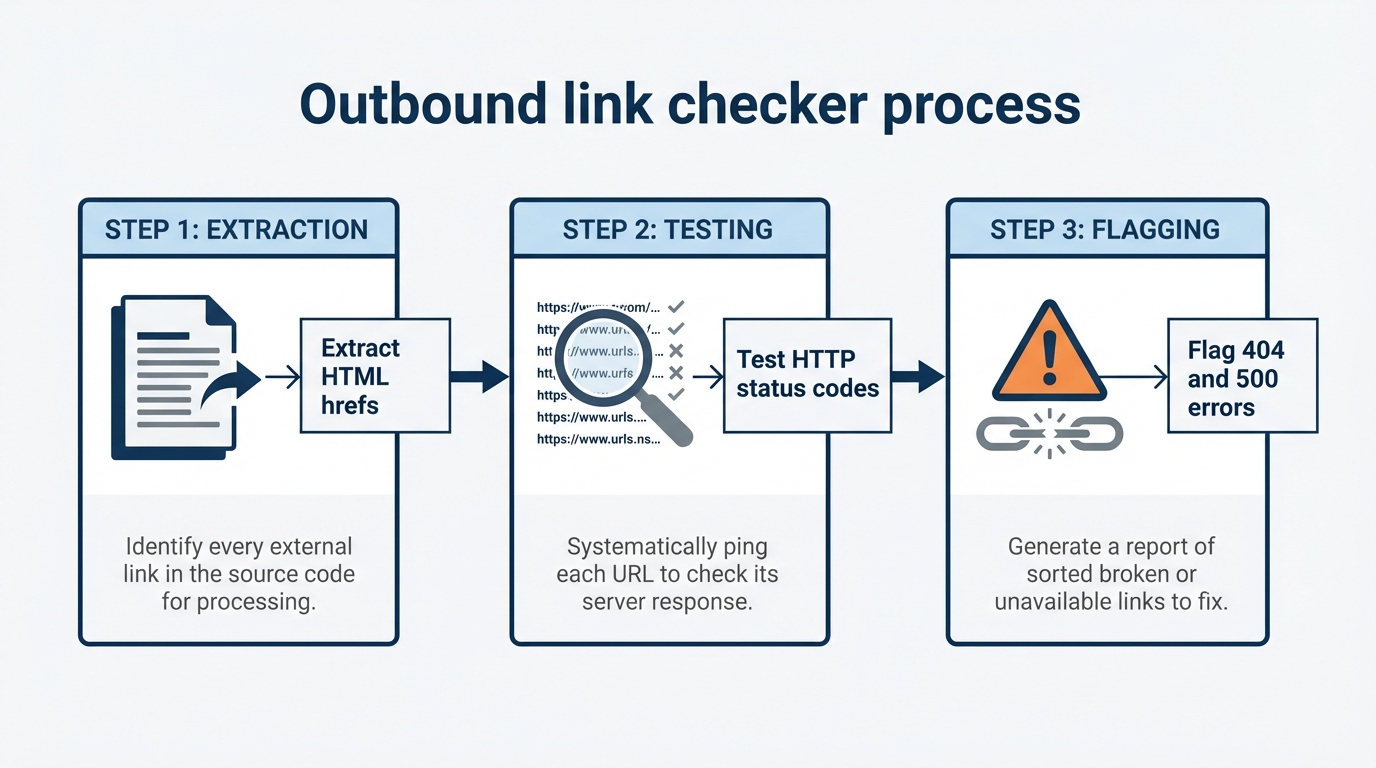
An outbound link checker is a tool that scans your website's HTML for href attributes pointing to external domains, sends HTTP status requests to each URL, and reports the response codes to identify broken links, redirects, and connectivity issues.
Most WordPress owners treat external links as an afterthought. They focus on internal linking for topical authority and assume broken external links are minor SEO housekeeping. That assumption erodes topical authority signals and creates detectable patterns in your outbound link footprint, including identical anchor ratios across multiple properties or exact-match outbound anchors pointing to the same domains. The quality, relevance, and health of your outbound links directly affect how search engines evaluate your site's topical expertise.
What is an outbound link checker?
An outbound link checker performs two distinct functions: it extracts every external link from your site's HTML during a crawl, then validates each URL by making HTTP requests and recording the response status code. The tool categorizes results into success (200), redirects (301, 302, 307), client errors (404, 410), server errors (5xx), and timeouts.
Unlike general site crawlers, a dedicated outbound link checker prioritizes external validation over internal structure analysis. It answers specific questions: Which external URLs are returning 404s? Which links have changed status since the last audit? What anchor text patterns do you use when linking outbound? Are those patterns natural, or do they suggest programmatic link placement?
Browser-based tools extract links by parsing DOM elements, which works for static HTML but misses links injected by JavaScript. Desktop crawlers and API-based solutions handle dynamic content, but they require different infrastructure, processing power, and access to system-level resources. That architectural difference determines how much of your site each tool type can realistically audit.
Why outbound links affect your topical authority
External links are citations in search engine algorithms. When you link to a resource, you signal that the target is topically relevant to your page's main subject. Linking to spam sites, irrelevant pages, or low-authority domains dilutes your own topical signals. Linking to authoritative, topically aligned sources reinforces your page's position within a semantic cluster.
Consider what Google's ranking systems evaluate when they assess your external citations: the entity coherence between your content and the destinations you reference. A personal finance blog linking to Federal Reserve research or peer-reviewed economic journals sends a clearer topical signal than linking to unrelated fintech startups. Search algorithms use these external citations to assess whether your content is meaningfully connected to the entities and topics it claims to cover.
Broken outbound links worsen this. A 404 destination signals either carelessness or abandonment of the topic you claimed to cover. Pages accumulate link rot over months or years, and with it a reputation for outdated content. A link to a resource that no longer exists does not just fail the user; it removes a citation that was previously helping establish topical context.
Outbound link audits also expose network-level patterns that search engines use to detect Private Blog Networks or coordinated link schemes. If your site uses identical anchor text patterns to link to a cluster of domains, uses exact-match branded anchors for sites you own, or maintains suspiciously balanced outbound link ratios across multiple properties, detection algorithms flag these as signals of artificial link infrastructure. Auditing your own outbound footprint before it is analyzed externally lets you identify and correct unintentional patterns that resemble deliberate manipulation.
Free outbound link checker extensions vs desktop crawlers
Browser extensions built for outbound link checking are convenient for spot-checks but fail at scale. A typical extension processes DOM elements in a single browser tab using your device's RAM. Testing a page with 50 external links works fine. A page with 500 or more links causes memory errors, slowdowns, or crashes. Extensions also cannot handle redirect chains, hidden links in custom fields, or links in sections that load after the initial page render.
Desktop crawlers avoid these limits by running outside the browser context. They allocate memory per-process rather than per-tab, distribute crawl jobs across CPU cores, and handle HTTP-level operations natively. Screaming Frog's SEO Spider, for example, crawls up to 500 URLs on the free version; the paid license (£259/year) supports larger crawls, with actual performance determined by your available system memory and CPU. This architectural difference means desktop tools can audit sites with thousands of pages in a single run; browser extensions typically time out or exhaust memory after a few hundred links.
The trade-off is setup complexity. Using a desktop crawler requires downloading software, configuring crawl depth and user-agent strings, and scheduling runs locally or via command line. Browser extensions install in seconds but lock you into the Chrome or Firefox environment and the tool vendor's infrastructure for storing results.
For smaller WordPress sites, browser extensions work for occasional link audits. For ecommerce sites with thousands of product pages or multi-site networks, desktop crawlers or API-driven tools are the practical choice. The threshold is not a fixed page count; it depends on how many external links your pages contain and how frequently you need to run audits.
How to audit external links for 404s and spam footprints
A technical workflow for outbound link auditing involves four steps.
Step 1: Crawl and extract. Run your tool across the site and export all external URLs with their HTTP response codes and anchor text. This export is your raw audit dataset. Filter for non-2xx and non-3xx responses first: these are hard failures (404, 410, 5xx errors) that warrant immediate investigation.
Step 2: Categorize error types. Not all non-success codes mean the same thing. A 404 means the resource was not found, but a destination may return a custom page with a 200 status code, creating a soft 404 that standard checkers miss. A 410 means the resource is permanently gone. A 5xx error usually means the remote server is temporarily down, not that the link is permanently dead. Prioritize hard 404s and 410s for immediate action; flag 5xx errors for retesting after 24 to 48 hours.
Step 3: Analyze anchor text patterns. Export anchor text for all outbound links and look for repetition. If the large majority of your external links use the exact same anchor text, if nearly all use branded keywords, or if anchor diversity follows a suspiciously uniform distribution, document it. This signals either automation gone wrong or deliberate anchor variation designed to evade PBN detection. Search algorithms treat both as red flags.
Step 4: Review nofollow and sponsored attributes. Modern audits should flag links without nofollow or sponsored tags that point to content you do not control or that you received compensation to link to. Missing attributions violate FTC guidelines and search engine policies. Screaming Frog's Site Audit and Ahrefs Site Audit both surface outbound link data that lets you cross-reference attribute coverage during a crawl.
Impact of link checking on server load
The infrastructure choice for running link checks creates real differences in CPU and RAM usage, and understanding those differences helps you avoid degrading site performance during audits.
Cloud-based link crawlers offload processing to remote servers. The vendor's infrastructure sends requests to your URLs, returns results, and consumes no local CPU on your end. The trade-off is that every scan requires internet bandwidth, and your audit depends on vendor uptime. Pricing models charge per scan or per site size, and costs scale with the number of URLs you need to check.
Local desktop crawlers run entirely on your device or a dedicated server. The actual resource consumption depends on site size, external link density, and crawl concurrency settings; there are no universal benchmarks that apply across all configurations. What is consistent: the CPU and RAM load scales with the number of URLs being checked simultaneously. On underpowered servers, large crawls may degrade site performance during peak hours and compete with active web traffic for memory. On a modern developer machine with adequate RAM, the same crawl runs in the background without noticeable impact.
Here is a direct comparison of the two approaches:
| Factor | Cloud-based crawler | Local desktop crawler |
|---|---|---|
| CPU load on your server | None | Scales with site size and concurrency |
| Privacy | URLs sent to vendor | Processed locally |
| Uptime dependency | Vendor's servers | Your own machine or VPS |
| Cost model | Per scan or subscription | One-time software cost |
| Setup | Browser or web dashboard | Software install required |
| Performance ceiling | Vendor infrastructure | Limited by your hardware |
For WordPress sites on shared hosting, cloud-based or browser-extension tools are the practical choice. Running local crawlers on shared infrastructure violates most host terms of service and generates resource complaints from the hosting provider. For sites on dedicated servers or VPS instances with available capacity, local crawlers keep your data private and add no recurring cost. For agencies managing dozens of client sites, cloud-based tools often become more cost-effective per URL because the operational overhead of running and maintaining local crawling infrastructure across multiple clients adds up quickly.
Choosing when to audit and what to fix
Outbound link audits should run quarterly for active sites, monthly for high-traffic sites, and after any major content update. You can schedule automated crawls on a schedule via cron jobs on desktop tools like Screaming Frog or via API calls on cloud platforms like Ahrefs.
When fixing broken external links, prioritize by traffic. A 404 on a page receiving substantial monthly visits costs more in lost topical context than one buried on a low-traffic page. Use Google Search Console to identify which pages get the most impressions, then prioritize fixing broken links on those pages first.
For each broken link, decide: update it (redirect to the correct URL if the resource has moved), remove it (delete the link element), or annotate it (if the destination is intentionally cited as a historical archive or a debunked claim). Search engines correctly interpret context; a link to a debunked source with surrounding text that clearly explains the historical context does not harm topical authority.
Your audit workflow
Start with a baseline audit of your site's external links using a free tool matched to your site size. For smaller sites, a browser extension works for an initial inventory. For sites with more than 500 pages, Screaming Frog's free tier covers up to 500 URLs per crawl; the paid version handles larger sites depending on available system resources.
Next, audit your anchor text distribution. If a large proportion of your outbound links use the same anchor or keyword phrase, manually diversify them. There is no magic percentage that triggers an algorithmic penalty, but uniformity in outbound anchors is one of the patterns that coordination-detection systems are built to find.
Fix high-traffic broken links first. A single broken external link on a high-impression page has more impact than multiple broken links on pages that rarely get visited.
Finally, schedule recurring audits. Most desktop tools and cloud platforms support scheduled crawls with alerts when new broken links appear. That keeps link rot from accumulating silently and maintains the editorial credibility your pages build over time.
Related Reading
- How to audit internal links for a step-by-step guide on maintaining your site's internal link structure.
- How to automate internal links to save time while ensuring consistent linking practices.
- Best AI Internal Linking Tools for WordPress (2026) to explore tools that can enhance your linking strategy.
Frequently asked questions
Can browser extensions check all my site's external links at once?
Browser extensions check links on a single page, not across an entire site. You would need to visit every page manually or automate tab-opening, which defeats the purpose. Desktop crawlers and web-based tools handle full-site audits in a single run.
What happens if I ignore broken external links?
Broken external links accumulate as link rot, signaling to search algorithms that your content is stale and poorly maintained. Over time, this affects topical authority and can gradually reduce rankings. Pages with many broken outbound links also score lower in site audit tools, which compounds the visibility problem for connected pages.
Is a 404 the same as a 410 status code?
No. A 404 means the server found the route but no resource at that path; the resource might return later. A 410 means the resource is permanently deleted and will not return. Search engines treat 410s as permanent deletions and typically remove the destination from their index faster than they drop 404s. Both are problems for your site, but a 410 at least sends an unambiguous signal.
How do outbound link patterns expose PBN networks?
If multiple sites you own all link to the same set of external domains using identical anchor text, exact-match branded anchors, or suspicious frequency (for example, every third post links to the same domain), detection systems flag the pattern as artificial coordination. Running outbound audits on your own sites lets you spot these repetitions before they attract algorithmic scrutiny.
Should I nofollow all outbound links to avoid passing link equity?
No. Passing link equity through relevant, high-quality external citations is normal and expected. Search engines use external link quality as a trust signal. Nofollowing all outbound links looks artificial. Use nofollow for sponsored links, user-generated content you do not endorse, or destinations you have reason to distrust.