How to code an internal and external link in HTML for semantic SEO
What you'll need
Before coding internal and external links, have these tools ready:
- A text editor or IDE (VS Code, Sublime Text, or similar)
- Knowledge of basic HTML syntax and file structure
- Familiarity with your site's URL structure and deployment environment
- Understanding of your target audience's browser support requirements
- Access to Google Search Console to monitor link quality signals
This guide assumes you're writing HTML directly or working in a WordPress environment where you need to override the default link output.
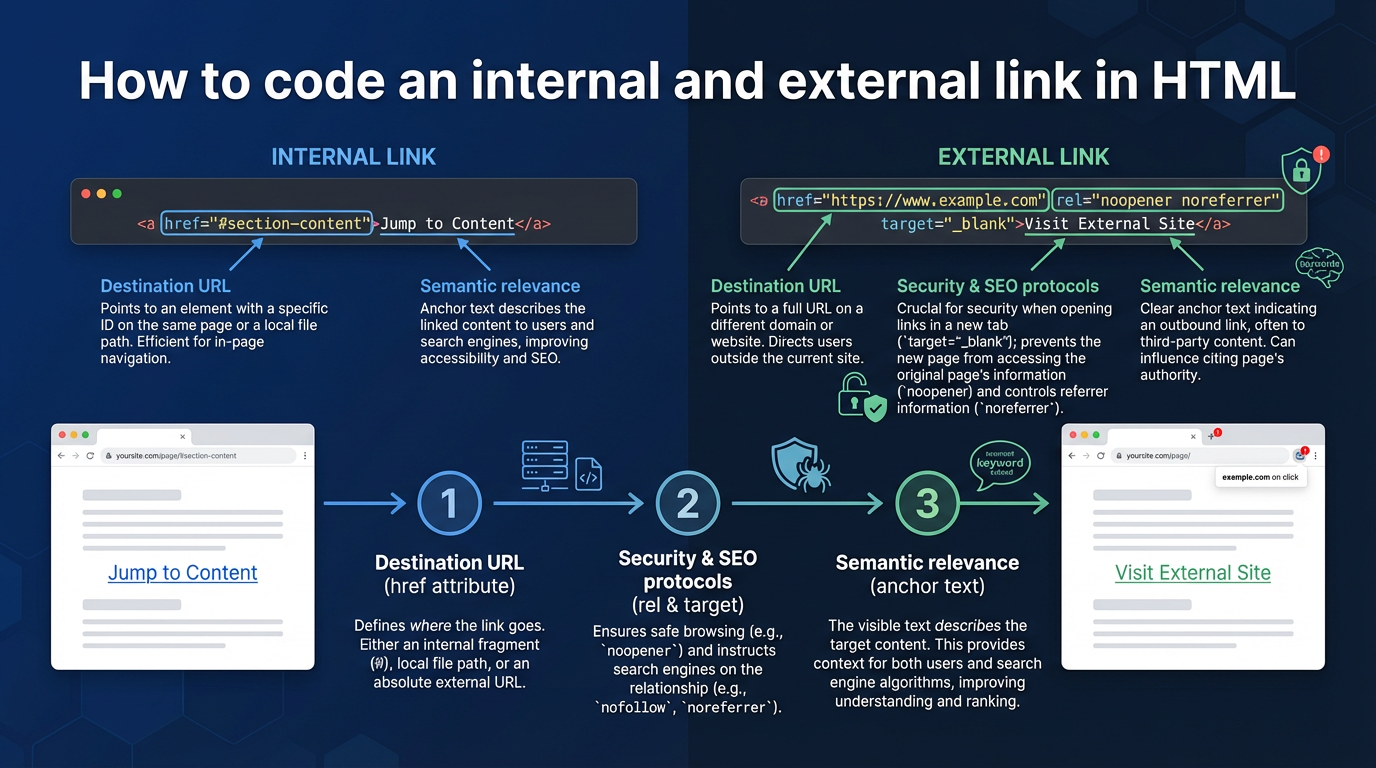
What are internal and external links in HTML?
An internal link is an anchor tag that points to another page within the same domain using the <a> element with an href attribute. An external link is an anchor tag that points to a page on a different domain. The HTML structure is identical; what differs is the URL format, security attributes, and SEO markup.
As MDN Web Docs explains, the <a> element's behavior is primarily defined by the href attribute. The key distinction for developers is that internal links can use relative paths (e.g., /about) while external links must use absolute URLs with a protocol (e.g., https://example.com).
This difference matters for a concrete reason: a relative URL will break if you move your site to a new domain, while an absolute external URL is portable. For SEO, relative paths ensure internal links retain canonical equity within a single domain. Absolute internal paths, by contrast, can dilute that equity across subdomains without proper canonical tags or hreflang configuration. Google Search Central's documentation on internal links covers how they distribute PageRank and improve crawlability; external links are treated as outbound signals rather than equity conduits.
How to code an internal link in HTML (relative vs absolute)
Relative paths are the foundation of portable internal linking. A relative URL starts without a domain and resolves from the site root.
Here's the basic syntax:
<a href="/blog/seo-tips">Learn SEO best practices</a>
For deeper nesting, use forward slashes to indicate directory structure:
<a href="/resources/guides/internal-linking-strategy">internal linking strategy guide</a>
If you're linking from a page nested several levels deep and want to reference a sibling or parent directory, use ../ to move up:
<!-- From /blog/post.html to /about.html -->
<a href="../about">About us</a>

<!-- From /resources/guides/post.html to /resources/downloads -->
<a href="../downloads">Download resources</a>
Relative paths do not include the domain, protocol, or www subdomain. If you include any of these, the browser treats the link as external. Also watch for a common staging mistake: using /page-name when your site lives in a subdirectory (e.g., example.com/mysite/). The leading slash resolves to the server root, not the site root, which breaks the path. Test relative links before deploying to production.
When to use absolute internal links instead:
Absolute internal links are necessary in specific contexts: RSS feeds, email notifications, links between subdomains, and structured data schemas. Sitemaps require absolute URLs per the sitemap protocol; relative URLs are invalid there. JSON-LD structured data technically allows relative URLs but absolute is more reliable across parsers.
<!-- Relative path: works only within the same domain -->
<a href="/blog/seo-tips">Read the guide</a>

<!-- Absolute path: required for emails, RSS, and sitemaps -->
<a href="https://yoursite.com/blog/seo-tips">Read the guide</a>
In WordPress, use get_permalink() to generate absolute URLs dynamically rather than hardcoding domains. Hardcoded domains create maintenance debt at scale:
// Correct: generates URL dynamically
echo '<a href="' . esc_url( get_permalink( $post_id ) ) . '">Link text</a>';

// Risky: hardcoded domain
echo '<a href="https://yoursite.com/page/?p=123">Link text</a>';
For staging environments, use define( 'WP_HOME', 'https://staging.yoursite.com' ); in wp-config.php to adjust domain references without changing code.
Expected outcome: The link resolves correctly to the target page. In browser DevTools, inspect the element and confirm the href attribute renders as the correct path or absolute URL.
How to code an external link in HTML securely
When you use target="_blank" to open an external link in a new tab, you expose users to a vulnerability called tabnabbing. The opened page can access the original tab via window.opener and redirect it to a phishing site. Pairing target="_blank" with rel="noopener noreferrer" closes that vector.
<!-- Vulnerable: allows tabnabbing -->
<a href="https://unreliable-site.com" target="_blank">External link</a>

<!-- Secure: prevents tabnabbing and referrer leakage -->
<a href="https://trusted-site.com" target="_blank" rel="noopener noreferrer">External link</a>
The rel="noopener" attribute removes the link between the original page and the opened page, preventing the new tab from accessing window.opener. Chrome 88+, Firefox 79+, and Safari 13.1+ now apply noopener by default for target="_blank" links, but including it explicitly keeps your intent clear and covers older browser versions.
The rel="noreferrer" attribute additionally prevents the Referer header from reaching the external site, which matters for user privacy. Use both together: rel="noopener noreferrer".
One more consideration: do not open external links in a new tab by default. It breaks the browser's back-button flow and creates friction on mobile. WCAG 2.1's guidance on changes of context advises that users should control navigation behavior; opening a new tab without warning is a change of context the user did not initiate. Reserve target="_blank" for situations where the user would genuinely expect it, such as links that open tools or file downloads.
Expected outcome: The link opens the external site in a new tab. Browser DevTools show target="_blank" and rel="noopener noreferrer" in the anchor element.
The SEO attributes: nofollow, sponsored, and ugc
Google treats rel attributes as hints, not directives. Googlebot may still discover a page linked with rel="nofollow" through other means, but the attribute signals that you are not vouching for the destination and do not intend to pass link equity. Understanding when to apply each attribute keeps your site clear of Google's link scheme policies.
rel="nofollow" for untrusted external content:
Apply this to external links where you cannot vouch for the content quality, including third-party references you haven't vetted.
<!-- External link you don't endorse -->
<a href="https://external-site.com" rel="nofollow">Third-party resource</a>

<!-- Paired with target="_blank" and noopener -->
<a href="https://untrusted-external.com" target="_blank" rel="noopener nofollow">External source</a>
Multiple rel values go in a single space-separated string. The order does not matter.
rel="sponsored" for paid links:
Google's October 2019 update introduced rel="sponsored" to distinguish paid placements from organic recommendations. Use it when you link to a site because of payment or affiliate compensation. It works as a hint alongside nofollow and can be combined with it, though Google recommends using the most specific attribute that applies.
<!-- Paid placement or affiliate link -->
<a href="https://partner-product.com" rel="sponsored">Buy recommended software</a>

<!-- Sponsored and opens in new tab -->
<a href="https://ad-network-site.com" target="_blank" rel="sponsored noopener">Sponsored content</a>
rel="ugc" for user-generated content:
When users submit links in comments, forums, or guest contributions, apply rel="ugc" to indicate these are not editorial endorsements.
<!-- In a comment or forum thread -->
<a href="https://user-submitted-site.com" rel="ugc">User's external resource</a>

<!-- If the link is also untrusted, combine attributes -->
<a href="https://user-submitted-site.com" rel="ugc nofollow">User-submitted link</a>
Many sites default every outbound link to rel="nofollow" out of habit, but that approach is less precise than Google's current guidance. Using the correct attribute for the correct context gives search engines a more accurate signal about your linking intent.
Comparison of external link attributes:
| Scenario | rel attribute | Notes |
|---|---|---|
| Paid advertisement | rel="sponsored" |
Use for compensated placements |
| Affiliate link | rel="sponsored" |
Applies when compensation is involved |
| User comment link | rel="ugc" |
Protects site authority |
| Untrusted source | rel="nofollow" |
Prevents passing link equity |
| New tab with no referral | rel="noopener noreferrer" |
Security and privacy |
| Paid + new tab | rel="sponsored noopener" |
Multiple values, space-separated |
| Internal link | No rel attribute | Never apply nofollow to internal links |
rel="dofollow" is not a real attribute. Some tools market it, but search engines do not recognize it. Omit the rel attribute entirely if you want a link to be followed.
Expected outcome: External links carry appropriate rel attributes based on context. A crawler audit confirms paid links have rel="sponsored", user-submitted links have rel="ugc", and untrusted external links have rel="nofollow".
How semantic search engines parse HTML anchor text
Search engines use more than keyword matching to evaluate links. The anchor text, the surrounding sentence, the target page's title, and the entity relationships between them all factor into how a link is weighted. When the anchor text reflects the target page's actual topic, the connection is clearer to both crawlers and users.
Consider two ways to link to the same page:
<!-- Poor semantic alignment: generic anchor -->
<p>For more details, <a href="/guides/internal-linking-strategy">click here</a>.</p>

<!-- Better semantic alignment: anchor reflects target topic -->
<p>Learn how to build an <a href="/guides/internal-linking-strategy">[internal linking strategy for semantic SEO](https://wplink.ai/blog/internal-linking-strategy-2026/what-is-an-internal-link)</a>.</p>
In the first example, the anchor "click here" provides no signal about the destination. The crawler relies entirely on the target page's content to infer the relationship. In the second, the anchor contains terms that match the target page's title, which reinforces the topical association.
W3C's WCAG 2.1 guideline "Link Purpose (In Context)" requires that anchor text convey the link's purpose to both users and assistive technologies. Generic phrases like "click here", "read more", or "learn more" fail this test. That standard applies to human accessibility and, in practice, serves the same goal as semantic SEO: make the link's destination unambiguous.
The practical rule: your anchor text should reflect your content's entity relationships. If you're linking from a post about "content marketing metrics" to a guide on "measuring blog ROI", an anchor like "content marketing ROI metrics guide" bridges those concepts. Defaulting to "read more" leaves that connection implicit and weakens the link's value for both users and search engines.
WordPress block editor vs raw HTML linking
Gutenberg abstracts link creation into a visual UI, but knowing the underlying HTML helps when you need to debug links, audit attributes at scale, or apply custom markup the editor doesn't expose.
To add a link in the block editor:
- Select text within a paragraph or heading block
- Click the link icon or press Ctrl+K (Cmd+K on Mac)
- Paste or type the target URL
- Optional: check "Open in new tab"
- Click the link button to confirm
Gutenberg generates this HTML for a basic link:
<p><a href="/blog/seo-tips">Learn SEO best practices</a></p>
In WordPress 5.9 and later, checking "Open in new tab" produces:
<p><a href="/blog/seo-tips" rel="noopener noreferrer" target="_blank">Learn SEO best practices</a></p>
Gutenberg does not expose a UI for rel="sponsored" or rel="ugc". To apply those, switch to the Code Editor view (three-dot menu at the top right, then Code Editor), locate the anchor tag, and edit the rel attribute manually:
<!-- Before -->
<a href="https://partner-site.com" target="_blank" rel="noopener noreferrer">Partner product</a>

<!-- After -->
<a href="https://partner-site.com" target="_blank" rel="noopener noreferrer sponsored">Partner product</a>
Save and return to the Visual Editor. The link displays normally with the updated attribute applied.
For bulk operations across hundreds of posts, editing individual links in the Code Editor is impractical. Automation tools that integrate with WordPress via the REST API can detect outbound links, flag missing rel attributes, and apply corrections across an entire site in bulk. WPLink, for example, uses semantic analysis rather than keyword matching to suggest contextually relevant internal links and handles bulk link deployment through REST API integration with review or auto-approve options.
Third-party SEO plugins like Yoast SEO and RankMath also extend Gutenberg's link modal with additional rel options. If you use either plugin, check their link editor before manually editing HTML.
One important caveat: when switching between the Visual and Code Editor views, Gutenberg may reformat your HTML. Custom attributes like data-* can be stripped or reordered. Test custom link markup thoroughly before publishing.
Comparison of link editing workflows:
| Task | Block editor | Raw HTML | Automation tool |
|---|---|---|---|
| Add basic internal link | Visual UI | Requires code knowledge | Not needed |
| Add external link in new tab | Checkbox option | Manual typing | Not needed |
| Apply rel="sponsored" | Requires Code Editor | Direct edit | Automatic via API |
| Audit all external links for missing rel | Cannot do at scale | Tedious; error-prone | Reports missing tags instantly |
| Bulk fix broken internal links | Not possible | Manual find/replace | Detects and fixes with metadata verification |
Troubleshooting: common mistakes
Missing href attribute
Writing <a>Link text without href</a> creates a non-clickable element. Always include href:
<!-- Incorrect -->
<a>Read more</a>

<!-- Correct -->
<a href="/blog/post">Read more</a>
Relative path that breaks after migration
Using ../ paths that assume a specific directory depth breaks when your site structure changes. Use root-relative paths starting with / instead:
<!-- Breaks if page moves -->
<a href="../../resources/guide">Resource guide</a>

<!-- Works anywhere on the site -->
<a href="/resources/guide">Resource guide</a>
Forgetting rel="noopener" on target="_blank" links
This exposes users to tabnabbing attacks. Always pair target="_blank" with rel="noopener noreferrer":
<!-- Missing noopener -->
<a href="https://external.com" target="_blank">Link</a>

<!-- Secure -->
<a href="https://external.com" target="_blank" rel="noopener noreferrer">Link</a>
Using rel="nofollow" on internal links
Applying nofollow to your own internal links wastes crawl budget and signals confusion about your site's structure to search engines. Use it only on external links:
<!-- Incorrect -->
<a href="/internal-page" rel="nofollow">Internal link</a>

<!-- Correct -->
<a href="/internal-page">Internal link</a>

<!-- Correct for external untrusted link -->
<a href="https://external.com" rel="nofollow">External link</a>
Hardcoding domain in all internal links
Absolute internal URLs with hardcoded domains break during staging and require manual updates after any migration. Use relative paths in content and dynamic functions in code:
<!-- Risky -->
<a href="https://mysite.com/blog/post">Blog post</a>

<!-- Better -->
<a href="/blog/post">Blog post</a>

<!-- Best in PHP/WordPress -->
<?php echo '<a href="' . esc_url( get_permalink( $id ) ) . '">Link</a>'; ?>
Generic anchor text that provides no semantic signal
Many sites still use "read more" or "click here" throughout their content. These phrases tell neither users nor search engines what the linked page covers:
<!-- Generic; no semantic value -->
<a href="/guides/internal-linking">Read more</a>

<!-- Descriptive; semantic signal -->
<a href="/guides/internal-linking">Master [internal linking](https://wplink.ai/glossary/internal-links) for semantic SEO</a>
Frequently asked questions
What's the difference between rel="nofollow" and rel="noopener"?
rel="nofollow" is an SEO attribute that tells search engines not to follow the link or pass link equity to the target. rel="noopener" is a security attribute that prevents the opened page from accessing the original tab via window.opener. They serve completely different purposes. A link can carry both if it opens in a new tab and you don't want to pass link equity, for example: rel="nofollow noopener noreferrer". Include rel="noopener" on all target="_blank" links; apply rel="nofollow" only when the context warrants it.
Should I use relative or absolute URLs for internal links?
Use relative paths in your main content and WordPress post content. Relative URLs are portable and don't break during site migrations or staging tests. Use absolute URLs only when required: RSS feeds, email campaigns, sitemaps (where the sitemap protocol mandates absolute URLs), and JSON-LD structured data. In WordPress, generate absolute URLs with get_permalink() or home_url() rather than hardcoding domains.
Can I apply multiple rel attributes to a single link?
Yes. Separate multiple rel values with spaces: rel="nofollow sponsored noopener". The order does not matter. If a link is sponsored and opens in a new tab, use rel="sponsored noopener noreferrer". If it's both user-generated and untrusted, use rel="ugc nofollow".
Do I need to add rel="noopener" if I don't use target="_blank"?
No. The rel="noopener" attribute only matters when target="_blank" is present, because that's when a new window or tab opens and window.opener becomes accessible. For links that open in the same tab (the default), rel="noopener" has no effect.
How often should I audit my links for missing rel attributes?
Audit quarterly or after any bulk changes to external links. A crawler like Screaming Frog, SEMrush, or Ahrefs can identify external links missing rel="sponsored", rel="ugc", or rel="nofollow" based on your linking policy. Manual auditing across hundreds of posts is error-prone; automating the check with a crawler that exports rel attribute data is more reliable.
Does link placement (top vs. bottom of content) affect SEO value?
Google's documentation does not explicitly state that link position affects value. That said, placing important internal links early in the content body is good practice because those links appear closer to the page's main topic declaration and are more likely to be seen by both users and crawlers before they exit. Burying key links in footers or sidebars is less effective than contextual placement within the content itself.
Related Reading
- How to automate internal links – Learn how to streamline internal linking at scale using automation tools.
- Internal Linking Automation: Automate Internal Links for SEO – Glossary entry explaining the concept and benefits of internal linking automation.
- Internal linking for affiliate sites – Best practices for internal linking strategies tailored to affiliate websites.
- Internal linking for ecommerce – Guide to optimizing internal links for ecommerce sites to improve SEO and user experience.